Introduction
Mapped drives in Windows allow you to access network locations as if they were local drives on your computer. When you're finished using these mapped drives, it's important to disconnect them to ensure smooth network operations. This documentation provides step-by-step instructions on how to disconnect mapped drives using the Windows Explorer keyboard shortcut to open File Explorer and then right-clicking to select the disconnect option.
Disconnecting Mapped Drives
Open File Explorer using Keyboard Shortcut: Press the Windows key and E key simultaneously to open File Explorer (Windows Explorer). This keyboard shortcut is a quick way to access your files and drives.
Locate the Mapped Drives: In the File Explorer window, navigate to "This PC" or "Computer" in the left-hand sidebar. Here, you will find a list of drives, including your mapped drives.
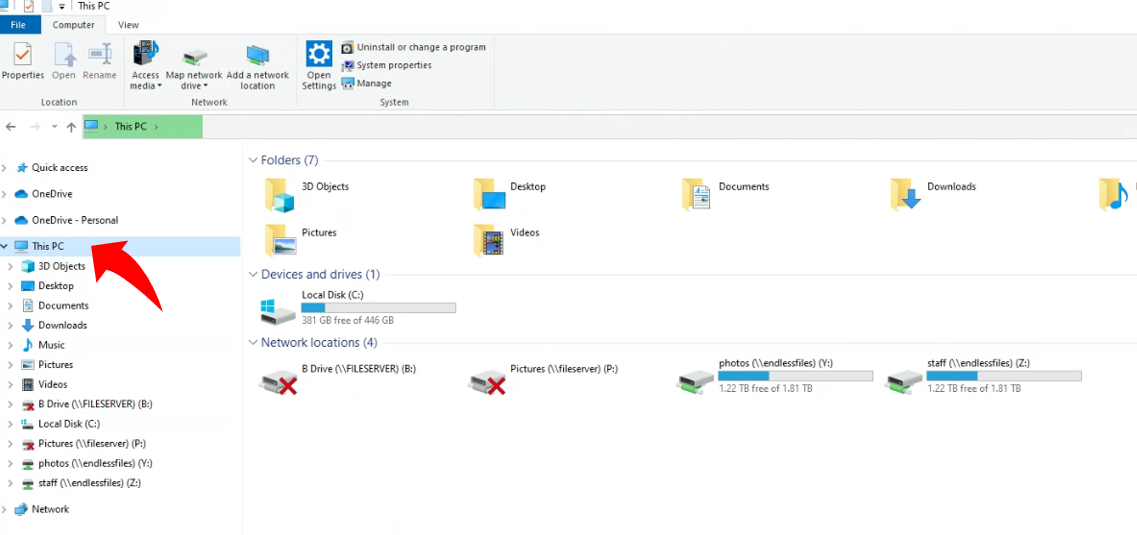
Identify the Mapped Drive to Disconnect: Scroll through the list of drives to identify the mapped drive you want to disconnect.
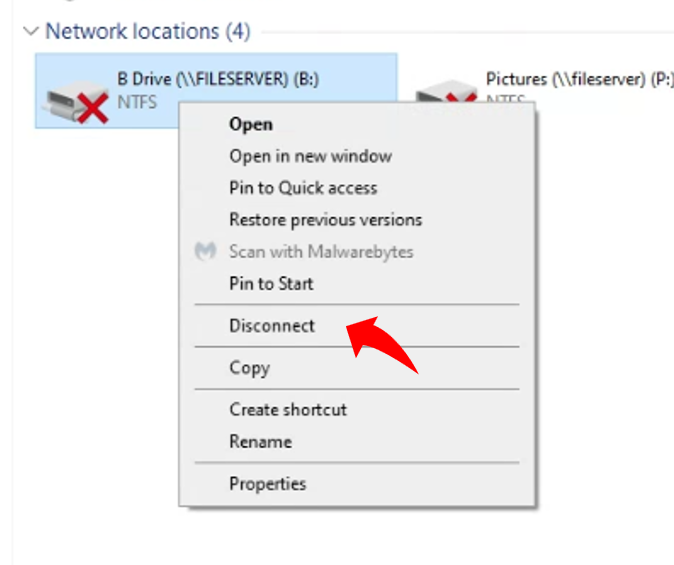
Right-Click on the Mapped Drive: Once you've located the mapped drive you wish to disconnect, right-click on it. This will open a context menu with various options.
Select "Disconnect": In the context menu that appears after right-clicking on the mapped drive, find and click on the "Disconnect" option. This action will initiate the disconnection process for the selected mapped drive.
Confirmation (If Applicable): Depending on your system configuration, you might see a confirmation dialog asking if you want to disconnect the network drive. Confirm the disconnection by clicking "Yes" or "OK."
Mapped Drive Disconnected: After confirming the disconnection, the mapped drive will no longer be accessible through the assigned drive letter in File Explorer.
Note
Disconnecting mapped drives ensures that you are not keeping unnecessary connections to network locations, which can help in maintaining network efficiency.
Conclusion
Using the combination of the Windows Explorer keyboard shortcut (Windows key + E) to open File Explorer and then right-clicking on the mapped drive to select the "Disconnect" option is an effective method to disconnect mapped drives from your computer. This process allows you to perform the disconnection quickly and efficiently, without the need to navigate through multiple menus. Always ensure that you have saved and closed any files from the mapped drive before disconnecting to prevent data loss or network disruptions.
Was this article helpful?
That’s Great!
Thank you for your feedback
Sorry! We couldn't be helpful
Thank you for your feedback
Feedback sent
We appreciate your effort and will try to fix the article